

Introduction
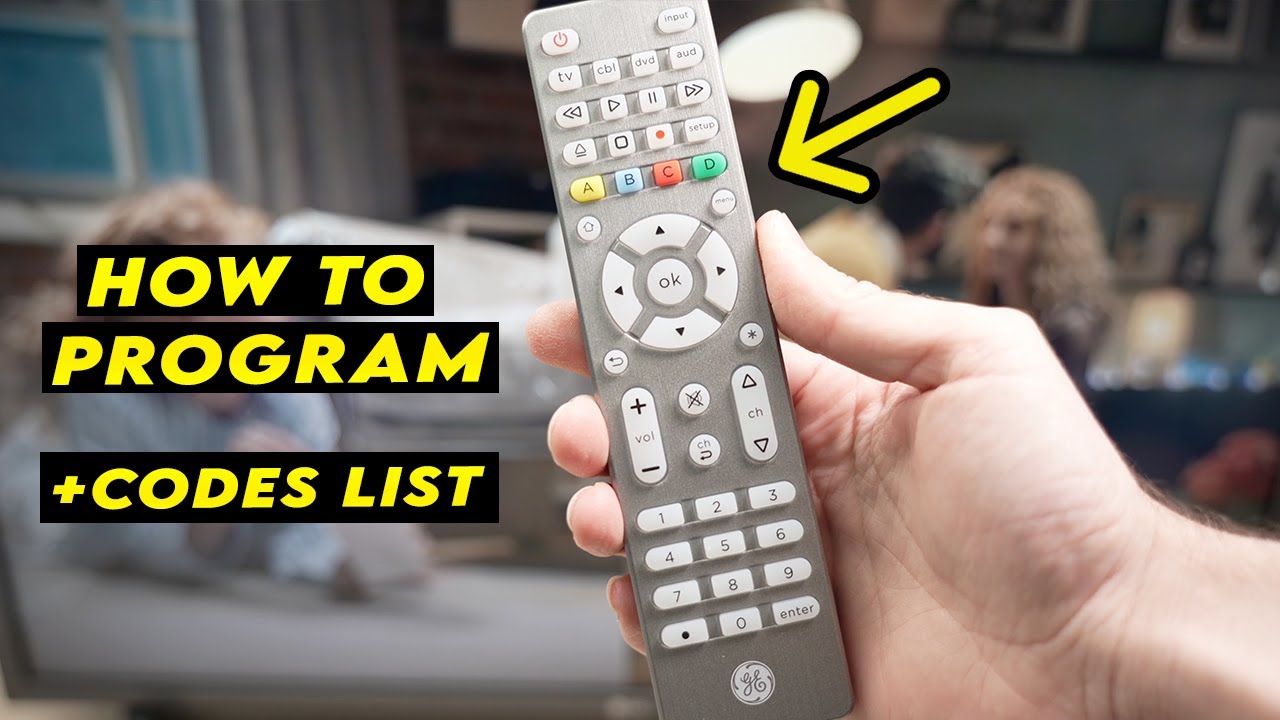
If you’ve ever found yourself juggling multiple remotes to control your TV, DVD player, or streaming device, you’re not alone. Designed for simplicity, the GE Universal Remote unifies all your entertainment controls into a single solution. However, to make it work with your devices, you’ll need the right GE universal remote codes and a few simple programming steps.
This guide will walk you through everything you need to know to program your GE remote, whether you’re connecting it to a TV, sound system, or other home entertainment devices.
Step 1: Find the Right GE Universal Remote Codes
Each device requires a specific code to sync with your GE remote. These codes are usually found:
-
Available in the official instruction guide that accompanies the remote.
-
On the official GE/Jasco website.
-
Listed on websites offering universal remote codes organized by device and brand.
💡 Example: If you’re programming a Samsung TV, you’ll need the Samsung-specific GE universal remote codes.
Step 2: Prepare Your Devices
-
Turn on the device you want to control (TV, DVD, streaming box, etc.).
-
Make sure the GE remote has fresh batteries installed.
-
Keep the device and the remote within close range.
Step 3: Manual Code Entry Method
-
Press and hold the Setup button on your GE remote until the indicator light stays on.
-
On the remote, press the device option (TV, DVD, AUX, etc.) you intend to configure.
-
Enter the code for your device brand using the number pad.
-
A successful code entry is confirmed when the light goes out.
-
Confirm successful programming by pressing power or volume controls.
👉 If the device doesn’t respond, repeat the process with the next code on the list.
Step 4: Auto Code Search Method
If you don’t know the exact code, you can let the remote scan for it automatically:
-
Press and hold Setup until the light remains on.
-
Press the device button (e.g., TV).
-
Press and release the Power button repeatedly until the device turns off.
-
Once it powers down, press Enter to lock in the code.
This method may take a little longer, but it’s useful when your code isn’t readily available.
Step 5: Test All Functions
After programming, make sure all buttons work properly:
-
Volume up/down
-
Channel changing
-
Menu navigation
-
Input/source selection
If some buttons don’t function correctly, try a different code from the list.
Tips for Success
-
Write down the correct code once you find it for future reference.
-
Some devices may have multiple codes—test them to find the one with full functionality.
-
Replace batteries if the remote seems unresponsive.
Conclusion
Programming your GE Universal Remote doesn’t have to be complicated. With the right GE remote codes and a step-by-step approach, you can control all your devices with a single remote, eliminating clutter and making your entertainment setup much more convenient. Whether you choose manual code entry or auto search, the process is straightforward and saves you time in the long run.
